Styles and scripts
Stylesheets
Documents are styled like your website, with print media rules. Custom stylesheets apply to PDF documents only, which is the place for CSS Paged Media rules (page size, margins, margin boxes...):
plugins:
  - exporter:
      formats:
        pdf:
          stylesheets:
            - resources/stylesheets/pdf.css
@page {
  size: A4;
  margin: 1.20cm;

  @bottom-center {
    content: "Page " counter(page) " of " counter(pages);
  }
}

.md-typeset {
  table {
    font-size: 9pt;
  }
}
Stylesheets are plain CSS: nesting is supported, Sass isn't (see the migration guide).
Documents are laid out by Chromium, which supports page sizes (they can differ from a page to another), margins, margin boxes with page counters, named pages (page: ...), @page :first and page breaks. Running headers are available through headers and footers; for other features of the CSS Generated Content for Paged Media module, see Using Paged.js.
Page size and orientation
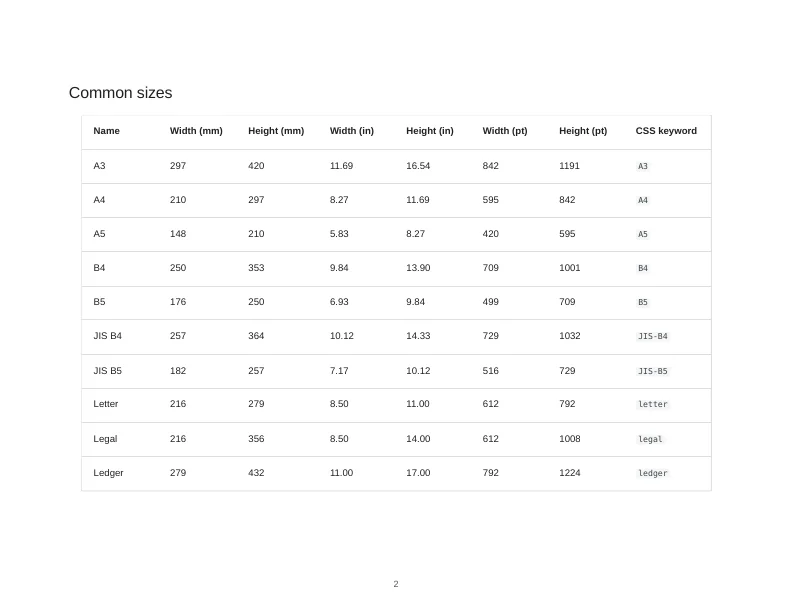
size sets the size of pages: a keyword (A4, A5, letter, legal...) optionally followed by an orientation, or a width and a height (6in 9in). Named pages print some elements on pages of another kind, such as wide tables on landscape pages:
@page {
  size: letter;
  margin: 2cm;
}

/* Elements of the `landscape` class are printed on landscape pages */
@page landscape {
  size: letter landscape;
}

.landscape {
  page: landscape;
}
<div class="landscape" markdown>

| Name | Width (mm) | Height (mm) | ... |
|---|---|---|---|
| A3 | 297 | 420 | ... |

</div>

reference/paper-sizes/index.pdf
The elements start on a new page of their kind, and are laid out with its width (see Paper size and landscape pages).
Page backgrounds
Pages are printed on the background of your website (in print media) unless a @page rule sets a background of its own, e.g. a full-bleed cover: the website's background is then left out of every page, so that it doesn't hide them. To print on a color in that case, give it to pages too:
@page {
  background: #fafafa;
}

@page :first {
  margin: 0;
  background: url("/assets/images/cover.png") center / cover;
}
Utility classes
These classes are available in PDF documents:
| Class | Effect |
|---|---|
page-break / page-break-after | Starts a new page after the element |
page-break-before | Starts a new page before the element |
avoid-page-break | Keeps the element on a single page when possible |
mkdocs-exporter-ignore | Removes the element from PDF documents |
mkdocs-exporter-only | Removes the element from the website (it is only in PDF documents) |
For instance, with the attr_list and md_in_html extensions:
<div class="page-break"></div>

This paragraph won't be printed.
{ .mkdocs-exporter-ignore }

This paragraph is only printed.
{ .mkdocs-exporter-only }
Example
Print styles: numbered headings, the address of links, a watermark, and content for the website or for documents only.
Moving elements
The data-mkdocs-exporter-teleport attribute moves an element into the element its value selects (a CSS selector), in documents and in the website's pages, e.g. the styles of a cover template to the head of the document:
<style data-mkdocs-exporter-teleport="head">
  @page :first {
    margin: 0;
  }
</style>
When the selector matches nothing, the element stays where it is, with a warning.
Scripts
Custom scripts are executed in PDF documents only:
plugins:
  - exporter:
      formats:
        pdf:
          scripts:
            - resources/scripts/pdf.js
Scripts can define hooks, awaited by the exporter:
window.MkDocsExporter = {
  /**
   * Once the page is loaded, with its fonts, images, MathJax formulas and
   * Material for MkDocs' diagrams.
   */
  before: async () => {},

  /**
   * Then, e.g. to wait for diagrams to be drawn.
   */
  render: async () => {
    if (window.mermaid) {
      await mermaid.run({ querySelector: '.mermaid' });
    }
  },

  /**
   * Last, right before printing (after `browser.delay`).
   */
  after: async () => {},
};
See JavaScript hooks for when hooks run and how their errors are handled.
When other scripts need more time, either use a hook or give them a delay (in milliseconds):
plugins:
  - exporter:
      formats:
        pdf:
          browser:
            delay: 500
Using Paged.js
Paged.js implements features of CSS Generated Content for Paged Media that browsers lack, such as running headers (string-set), page references (target-counter) or footnotes. To use it, download paged.polyfill.min.js to your project and load it after a script running it before documents are printed:
plugins:
  - exporter:
      formats:
        pdf:
          scripts:
            - resources/scripts/pagedjs.js
            - resources/scripts/paged.polyfill.min.js
window.PagedConfig = { auto: false };
window.MkDocsExporter = {
  render: () => window.PagedPolyfill.preview(),
};
Paged.js lays out pages in JavaScript: expect documents to take longer to generate, especially books. Paged.js 0.4 also fails on some :nth-child(An+B) selectors, such as those of the readthedocs theme.